
How-to · Cross-module
How to run day dockets on inspections and maintenance
Day dockets are the field shift record. Learn the lifecycle from Needs briefing through work items and site feed, using DEMO-FAC-001 as the worked example.
Every inspection and maintenance job can carry Day and Night dockets per work date. A docket is not a chat thread. It is a controlled shift record: briefing, crew, safety sign-on, work items (defects or tasks), and a site feed with photos.
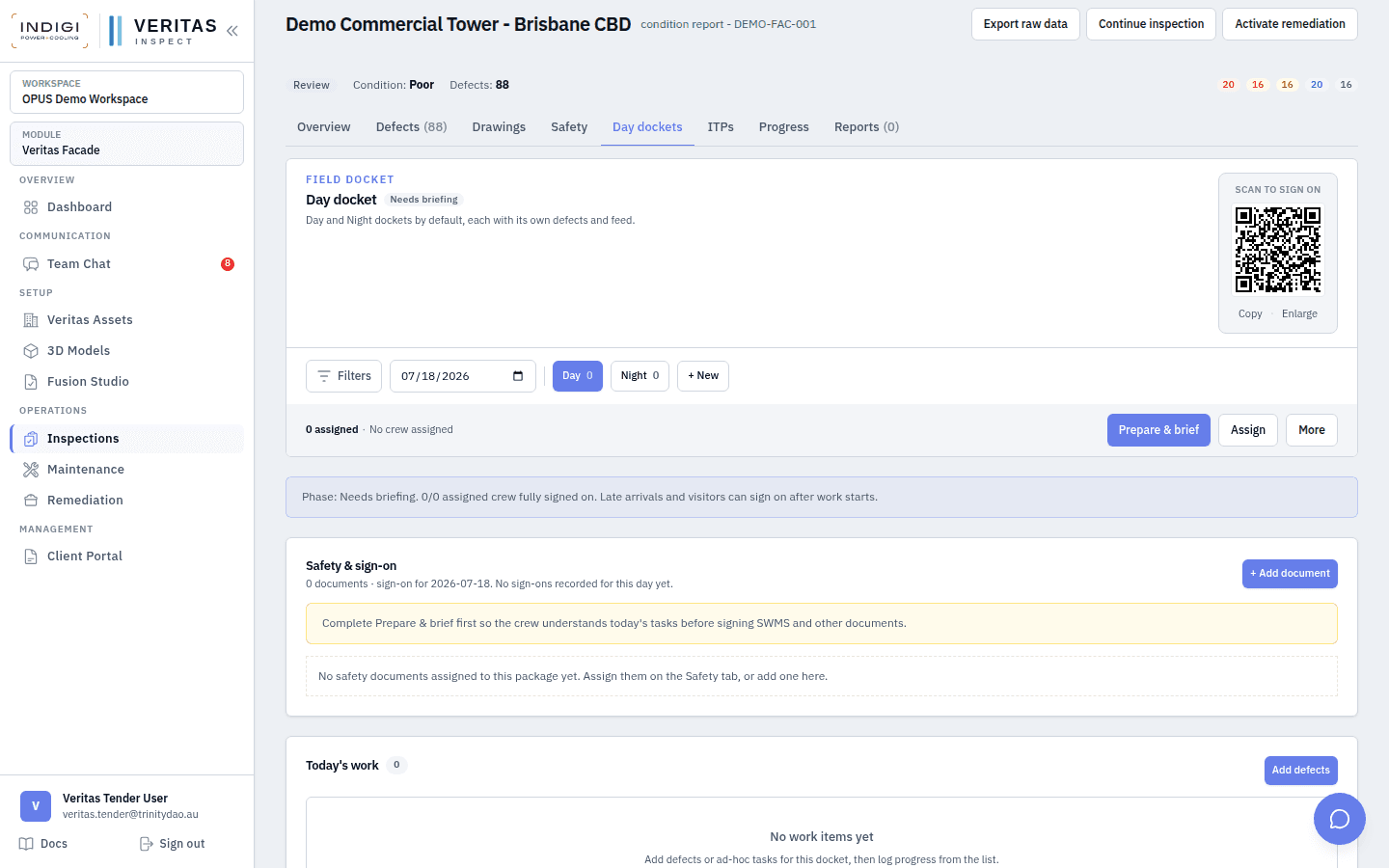
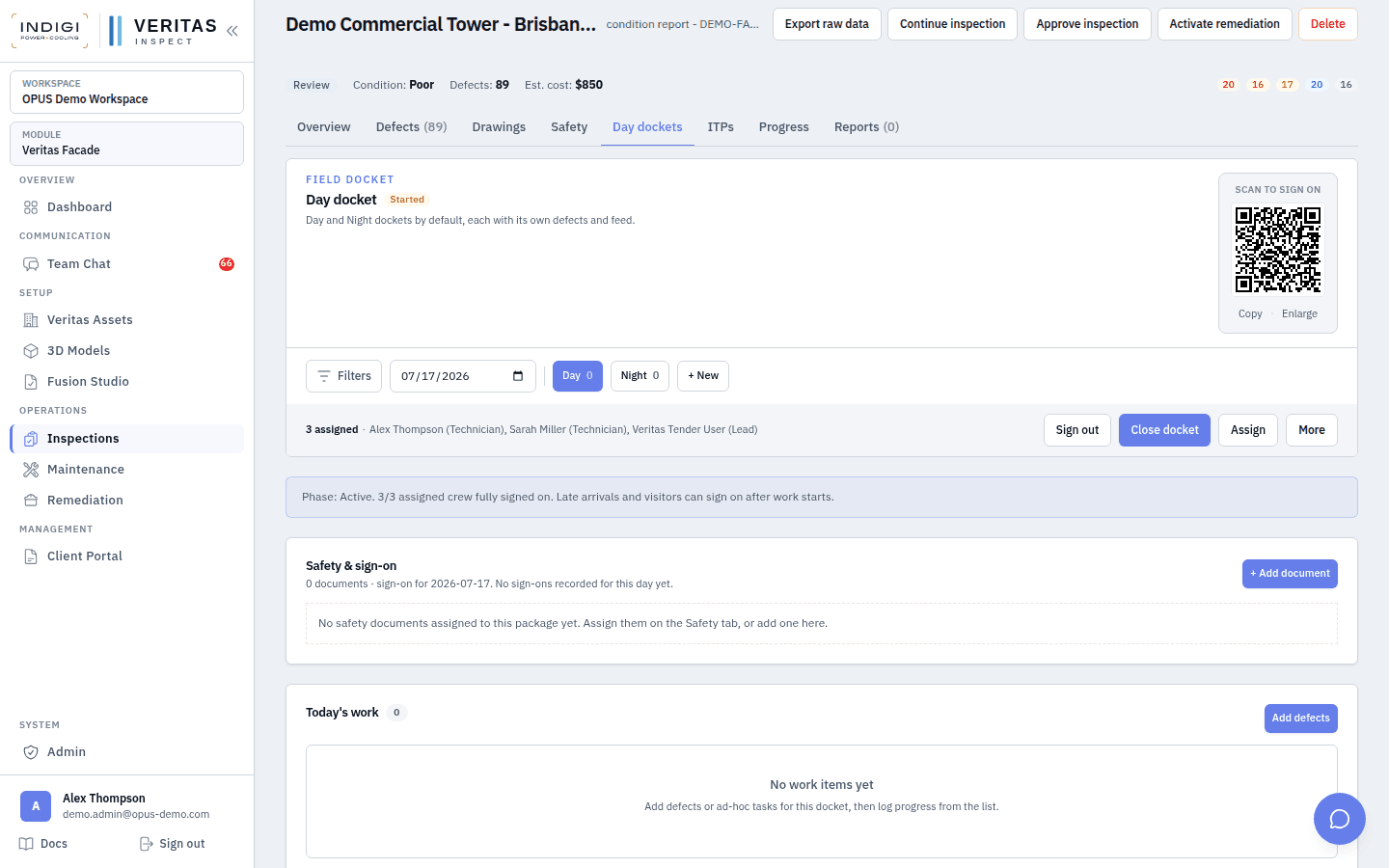
On DEMO-FAC-001 the Day dockets tab shows Prepare & brief, Assign, QR sign-on, Today’s work, and Site feed. Work items and feed posts are blocked until the docket has been prepared and the first assigned crew member completes required sign-ons.
Step-by-step
- 1. Open Day dockets on the job
On an inspection or maintenance detail page, select the Day dockets tab. Pick the work date. Day and Night counters show how many work items exist on each shift docket.
- 2. Prepare & brief
While status is Needs briefing, click Prepare & brief. This is the supervisor gate: confirm today’s tasks and safety context before the crew can treat the docket as open for productive work.
- 3. Assign crew
Use Assign to attach workers for the date. Assigned count drives the sign-on checklist. Late arrivals and visitors can still sign on after work starts, but the first assigned member unlocks the feed and work-item writes.
- 4. Share the QR for sign-on
Enlarge or copy the sign-on QR. Crew scan to acknowledge SWMS and other assigned documents for that date. Sign-on status is visible under Safety & sign-on.
- 5. Build Today’s work
After the docket is started, add defects from the job register or ad-hoc tasks (for example: Complete North elevation Drop 3 sealant survey at Levels 16-20). Work items become the checklist the feed can mark done against.
Tip: Until Prepare & brief and first sign-on complete, Add task and Post update return a lifecycle conflict. That is intentional.
- 6. Post site feed updates
Use Quick update types (Update, Task done, Plan, Weather, Safety). Add photos and optional location marks. The feed is the chronological evidence trail for supervisors and client portal progress views.
- 7. Close out the shift
When work stops, complete the docket close-out path for that date. Night dockets follow the same pattern for after-hours crews. Keep Day and Night separate so attendance and safety records stay clean.
In the product
Screens from the OPUS Demo walkthrough
Best practices
- One work date = one Day and one Night docket by default. Do not overload a single docket with multi-day narrative.
- Brief before sign-on. Crews should understand today’s lanes and defects before acknowledging SWMS.
- Prefer linking real defects into Today’s work over free-text only. Defect progress then syncs with the register.
- Post weather and access blockers early. Downstream remediation and billing disputes often hinge on that evidence.
- Use the same docket pattern on Facade inspections and MEP maintenance so supervisors learn one muscle memory.
See it on a live demo workspace
Book a walkthrough of OPUS Demo and we will run defects, drops, dockets, maintenance, and remediation on real projects.